Getting started
This page takes you from a fresh clone to a simulated Kachaka that builds a map, drives to goals with Nav2 and takes commands from the official kachaka-api Python client. Each step says what you should see before you move on.
1. Check the machine
- Ubuntu 24.04 on x86_64.
- An NVIDIA RTX GPU with a driver that Isaac Sim 6.1 supports (tested on an
RTX 2080 Ti, driver 595).
nvidia-smishould list the GPU. - uv, git, and Docker with Compose
(
docker compose versionshould work withoutsudo). - About 40 GB of free disk: Isaac Sim in
.venvis about 34 GB, the ROS 2 image about 4 GB.
2. Install
git clone https://github.com/atinfinity/kachaka_isaac_sim.git
cd kachaka_isaac_sim

uv sync                                  # Isaac Sim 6.1 into .venv (large download)
uv run python scripts/fetch_assets.py    # official Kachaka and shelf descriptions into third_party/
uv run python scripts/build_usd.py       # the robot USD, from the official URDF and meshes

docker compose -f docker/compose.yaml build   # ROS 2 Jazzy image: slam_toolbox, Nav2, RViz, teleop
The robot and shelf models are downloaded from their upstream repositories, not shipped with this one (see License).
3. Start the simulator
scripts/run_sim.sh               # with the Isaac Sim window
scripts/run_sim.sh --headless    # or without it
scripts/run_sim.sh accepts the NVIDIA Isaac Sim license
for you (OMNI_KIT_ACCEPT_EULA=YES). The first start compiles shaders and
takes a few minutes; later starts take under half a minute. It is ready when it prints:
[kachaka] running: ROS namespace '/kachaka', world 'room', charger at (-2.27, 0.0, 0.0), kachaka-api on port 26400
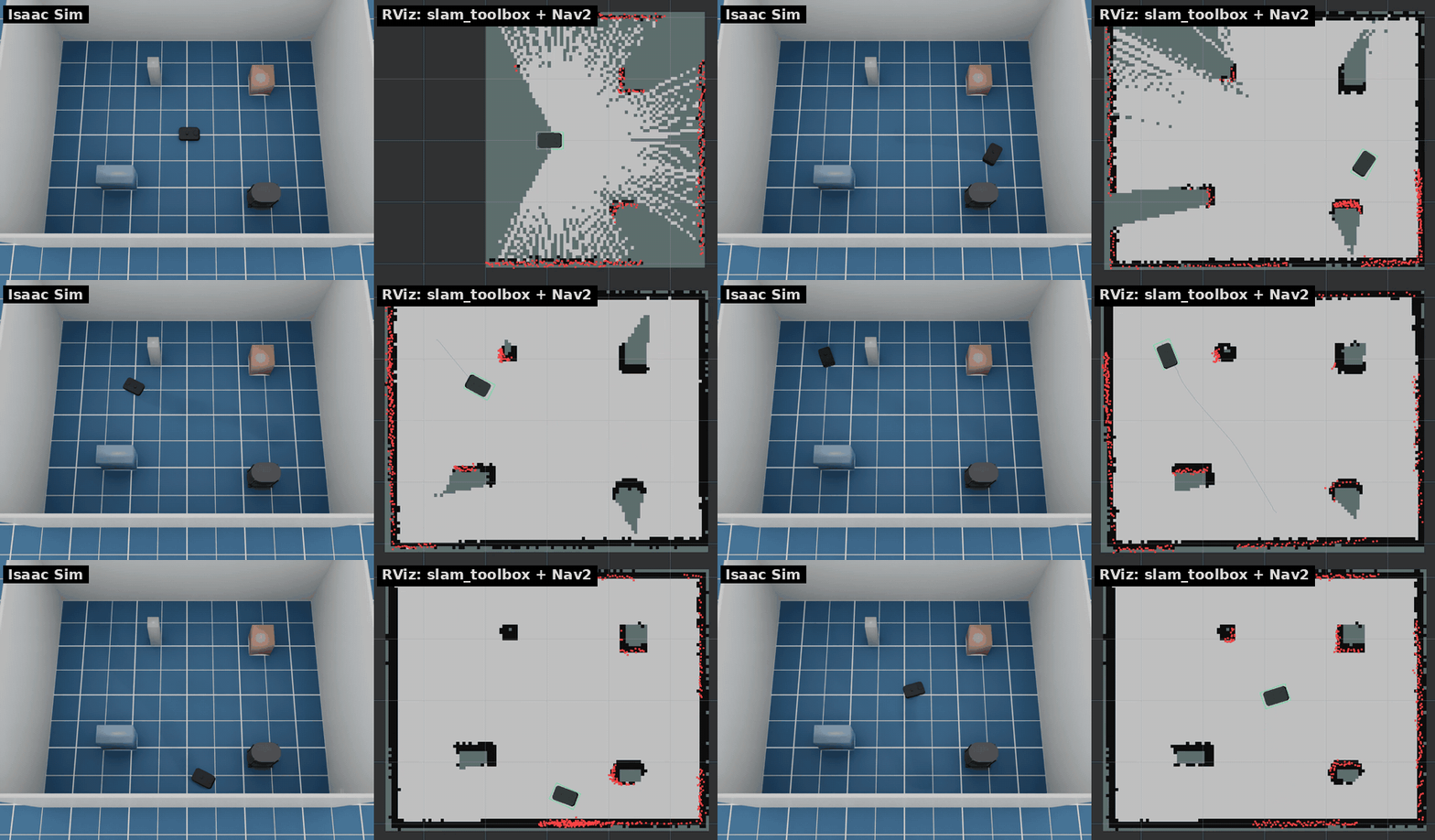
The default world is a walled room with the robot in the middle, its charger
by the west wall, a Kachaka Shelf (S01) and two people. Leave the
simulator running and use a second terminal for the rest.
4. Drive it with the keyboard
docker compose -f docker/compose.yaml run --rm teleop
With that terminal focused, i drives forward, , back, j and l turn,
and k stops. Manual driving is capped at 0.3 m/s, as on the real robot's
bridge, and the robot brakes in front of obstacles. Quit with Ctrl+C.
5. Build a map and send Nav2 goals
xhost +local:                    # once per login: let containers open RViz
NAV=true docker compose -f docker/compose.yaml up slam
RViz opens with the LiDAR scan (red dots) and the map growing around the robot. Click 2D Goal Pose in the toolbar, then click and drag on the map to set a goal and heading: Nav2 plans a path (blue line) and drives there. Drive around until the whole room is on the map. The RViz colours table explains the rest of the display.
6. Save the map and navigate on it
With slam still running, save the map from a third terminal:
docker compose -f docker/compose.yaml run --rm shell \
    ros2 run nav2_map_server map_saver_cli -f /maps/map
It lands in maps/map.yaml and maps/map.pgm. Stop slam (Ctrl+C), then
localize and navigate on the saved map:
docker compose -f docker/compose.yaml up navigation # MAP=name for maps/name.yaml
AMCL starts at the map origin, which is where the robot spawned while mapping. If the robot is somewhere else, give its pose with 2D Pose Estimate in RViz.
7. Use kachaka-api from Python
The simulator serves the kachaka-api gRPC API on port 26400, like the real
robot. With slam (NAV=true) or navigation running, try the official
client on the host. No ROS is needed there:
uv run --no-project --with kachaka-api==3.17.5.0 python
from kachaka_api import KachakaApiClient

client = KachakaApiClient("127.0.0.1:26400")
print(client.get_robot_pose())
client.update_resolver()            # load location and shelf names
client.move_to_location("L01")      # "Kitchen" in the default room
client.move_shelf("S01", "L01")     # dock under the shelf and take it to the kitchen
client.return_shelf("S01")
client.return_home()                # back onto the charger
Code written for a real Kachaka works the same way: point it at
127.0.0.1:26400 instead of the robot's address. ROS 2 code uses the same
topics under /kachaka as the real bridge (ROS 2 interface).
8. Check the installation
scripts/smoke_test.sh            # headless: topics, TF, driving, step sensors, two robots
scripts/smoke_test.sh --nav      # also SLAM, Nav2, docking, shelves and commands (longer)
Stop your own simulator first: the script starts its own. Exit code 0 means everything passed. More checks are in Tests.
Next steps
- Other worlds:
scripts/run_sim.sh --world office(orhospital,warehouse,kitchen_l_shape, …), a USD file, or walls from an occupancy map. See Simulator options. - Your own room: place shelves, locations, people, boxes, walls and doors with a layout file. See Worlds and layouts.
- What the robot can do: commands, docking, shelves, battery, torches, object detection. See Robot features.
- Batches of navigation runs with metrics: Scenario runner.
- A web dashboard and demo notebooks over kachaka-api: kachaka-api (gRPC).
Troubleshooting
- RViz does not open (
could not connect to display). Runxhost +local:in the desktop session, and check thatDISPLAYis set in the terminal that starts the container. - The ROS 2 side sees no topics. The containers use host networking and
must run on the same machine as the simulator, with the same
ROS_DOMAIN_ID(0 by default). Check withdocker compose -f docker/compose.yaml run --rm shell ros2 topic list. - Camera images drop or never arrive in your own ROS 2 nodes. Fast DDS
needs bigger socket buffers for them:
export FASTDDS_BUILTIN_TRANSPORTS=UDPv4?sockets_size=4194304(the containers set it already). See Performance. - The people are grey capsules. Their characters come from NVIDIA's asset
server. Without network access they are mannequins, and the simulator
prints
Isaac Sim asset server not reachable. - The simulation runs slower than real time. Use
--no-cameraswhen you only need the LiDAR and odometry, or a lower--render-hz. See Performance.